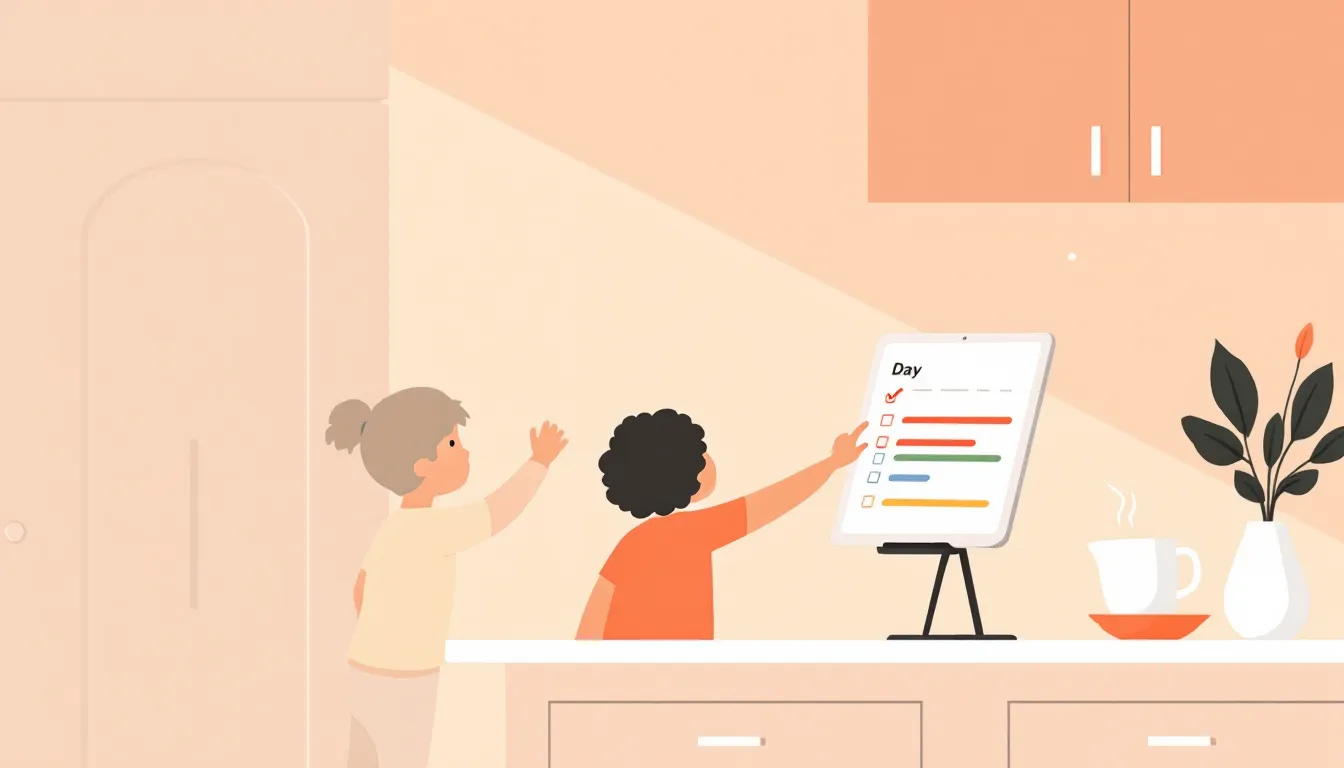
Momwise on iPad: Meet the Family Screen, Your Shared Family Hub
Momwise now runs on iPad, and any iPad can become a Family Screen: a shared family hub with the calendar, meals, kids' routines and tap to talk.
The Family Hub That Answers "What's Today?" Before Anyone Asks
Every household has a question that gets asked forty times a week. "What's for dinner?" "Who's picking me up?" "Is it a library day?" Usually it's aimed at whichever parent is closest, and usually that parent is mid-sentence, mid-email or mid-pancake.
That's why we built the Family Screen. Momwise now runs on iPad, and any iPad in your home can become a shared family hub on the kitchen counter or the wall. It shows the day for everyone, gives the kids their own routines to tap through, and takes a request out loud. Here's what it does, how to set it up in a few minutes, and how to make it stick.
What Is the Family Screen?
The Family Screen is a mode of the Momwise app for an iPad that stays on in a shared spot. Think of the paper calendar on the fridge, except it updates itself and nobody has to rewrite it every Sunday.
It shows only what's shared: the family calendar, lists, meals and to-dos. Your threads, your Inbox and your personal calendars stay on your phones. That line matters, because a screen in the kitchen is read by everyone who walks past it, from your seven-year-old to the plumber.
Momwise on iPad also works as a regular app. If you'd rather use it on the couch like you do on your phone, you can. The Family Screen is for the iPad you hand over to the whole household.
Why a shared screen at all? Because the planning in most homes lives in one person's head. In one 2024 study of mothers with young children, the mothers reported carrying about 73% of the household's cognitive labor, the noticing, remembering and reminding, and a heavier share was linked to lower wellbeing. We've written more about that invisible mental load. A screen everyone can read won't split the work for you, but it does take "ask Mom" out of the loop for the easy questions.
Key Features of the Family Screen
A day everyone can read
Today shows a lane for each person. Each lane carries that person's events in their own color, so "who's got swim pickup" is answered by a glance instead of a text. A Compact view fits more people on the day if your household is big, and the Week, Meals and To-dos tabs sit in a dock along the bottom.
Kids' routines with stars
Each kid gets a morning, after-school and evening routine. Kids tap each step as they finish it, earn stars, and build a streak ("4 mornings in a row"). Parents set routines up on their phones, starting from templates sorted by age (4–6, 7–10, and teens), so you can have a first morning list in a few taps. A 2024 review of 170 studies found predictable family routines consistently linked with stronger self-regulation in kids, and a visible list is one of the simplest ways to keep a routine predictable.
Rewards a parent signs off on
Stars add up to rewards you choose. A kid can pin a goal, watch the stars climb, and ask to redeem when they're there. A parent OKs every redemption, either with the screen's code or from their own phone, so "30 minutes of iPad" never gets cashed in by surprise.
Tap to talk
Say it instead of typing it. "Add milk to the grocery list." "What time is soccer on Saturday?" The screen listens, Momwise's helpers handle it, and the answer comes back out loud, labeled as an AI voice. Anything a helper would change waits for a parent's OK.
How to Set Up Your Family Screen
- Pick a spot people actually pass. The kitchen counter or the wall by the door beats the office. Near an outlet, at kid height if your kids will tap it.
- Install Momwise on the iPad and sign in. Use a parent's account; the screen becomes part of your household.
- Open Settings › Family Screen and choose "Make this our Family Screen." The checklist walks you through the rest.
- Choose who appears. Switch on each parent, kid and caregiver who should have a lane.
- Set night hours and timeouts. At night the screen dims; when no one's around, it rests on a big clock or your family photos.
- Pick a four-digit exit code. It's how a parent leaves the screen, opens its settings or OKs a change. Triple-tap the clock or swipe down from the top to get there.
- Add one routine per kid, then go live. Start with mornings. You can add the rest once the first one sticks.
Common Questions
- "Will guests see our whole life?" Not if you don't want them to. Tap Guests on the dock to turn on privacy mode: the screen shows only the clock, the date and the weather until a parent enters the code.
- "Can my kids change the calendar?" Kids can check off their own routine steps and to-dos. You can lock calendar and to-do edits behind the code, and leaving or changing settings always needs it.
- "Do we need a new iPad?" No. An older iPad on a stand works well, and the Family Screen keeps itself awake during the day so you don't have to fiddle with sleep settings.
- "Does it cost extra?" No. The Family Screen is part of your Momwise household, with no separate subscription.
- "What happens if the Wi-Fi drops?" The screen keeps showing the day it already has and catches up when the connection comes back.
Tips for Success
Make the screen the first answer
The habit you're building is "check the screen" instead of "ask a parent." For the first week, when someone asks what's for dinner, point at the screen rather than answering. It feels a little silly. It works.
Keep routines short, and teach them once
Three to five concrete steps is plenty for younger kids. A morning list of "dressed, breakfast, teeth, shoes, backpack" gets finished. A list of twelve gets ignored by Wednesday. Walk through it together once on a calm weekend morning, tapping each step as you go, before you expect it to run on a school day. For more on building the routine itself, see our guide to a toddler bedtime routine.
Save stars for the hard stuff
The American Academy of Pediatrics suggests reward charts that record success rather than penalties, paired with specific praise ("you checked the screen and got your shoes on"). Stars work best for the steps your kid finds hard. Paying stars for things they already love doing can quietly make those things feel like work.
Use notes for the things that don't fit a calendar
Pin a note to the screen for the day's big news, a quote, or a countdown to the beach trip. Momwise's Househand helper can also pin one from the morning brief, like a reminder that it's pajama day.
Plan the week's meals where everyone can see them
The Meals tab shows the week's dinners, so "what's for dinner" stops being a question. If you're starting from a blank week, our free meal plan generator gives you a full week of family dinners in about a minute.
Keep reading:
Your Family Hub, Finally in One Place
A family hub isn't about the hardware. It's about moving the answers out of one parent's head and onto a screen the whole household can read. When the kids can see their own morning and the day's plan is on the counter, the forty questions a week start to shrink.
Momwise for iPad is on the App Store now. Set up the Family Screen on an iPad you already have, add one routine per kid, and give it two weeks. You're already doing the hard part; this just gives it somewhere to live.
Have questions about setting up your Family Screen? Chat with Momwise anytime for personalized support tailored to your family.
Momwise handles the chaos so you don't have to
Scheduler, Meal planner, Sidekick and Househand take the calendar, dinner and to-dos off your plate. Try your village free for 3 days, no card.
You might also like

Getting Started with Momwise: Your AI Family Planner
Discover how Momwise helps busy parents manage the chaos of family life with AI-powered chat, meal planning, task management, and more, all in one app.

Plan It Together: One Shared Family Chat for Partners, Grandparents and Sitters
Momwise threads are now shared. Plan the week with your partner, grandparents or sitter in one family chat, with an AI that knows who's in the room.

How AI Is Changing the Way Parents Get Answers
From ChatGPT wake windows to personalized sleep schedules, discover how parents are using AI assistants to navigate the challenges of modern parenting, and why purpose-built tools like Momwise offer something more.